There are several ways you can help grow this site. But first, look at the Guidelines for Posts page to see the kinds of events and posts we are interested in.
Anyone can suggest upcoming events
Fill out the “Add Event Form” with the event’s details. That will send an email to the web team, who can add the event to the site. Click the field labels to see what goes in each field.
For events that are already posted on other sites, you can give the URL with most of the information, using the following form:
Anyone can suggest new posts
Posts for books, articles, videos, organizations, etc., can be suggested by anyone. Fill out the “Add Post Form” with the details and a summary. That will send an email to the web team, who can add the post to the site. Click on the field labels to get directions about what goes in the field.
What are we interested in? See the Guidelines for Posts
You might also be interested in joining the Books, Ideas, and Research Committee (IPV-BIR)
Click HERE to see step-by-step directions for how to fill out the following Add Post Form.
Author users
You can sign up to be an “Author.“
- Authors can use the “Submit a Post” form to create a draft post. Then the web team person, with edit privileges, can make the post publish-ready.
- Or authors can use the WordPress block editor to make posts the way they want it. And there is no need to wait for anyone to edit it.
Note: first-time users may be given the “Contributor” role. They can create draft posts. Then an editor user can review and publish their posts. If they have consistently followed the site’s style, they will be changed to the Author role.
Editor users
You can sign up to be an “Editor.”
Editor users can:
- create new posts, and publish them
- edit draft posts and publish them
- edit existing posts, to fix and add to them
- add and edit pages, categories, and tags
Block Editor How-To
To use the WordPress Block editor, you need to be signed up as an Author or Editor user. Use the “Contact Us” form to request a user.
When you have a user, go to the test site https://test.indivisiblepv.info/ to practice. Do not use the main site for “learning”; that is what the test site is for.
Sign in using the “Log In” menu. That will take you to the WordPress administration page. From there, you will select the “Posts” menu. For details about how to add or edit posts, see the videos:
Stop halfway at 12:44, we are not using “Thrive Architect.”
This video shows more block types.
Categories and Tags
- Always set at least one category and one tag on a post. Do this in the right panel Post tab area.
- See the Categories and Tags page for a list of all categories and tags, with their descriptions and the number of posts that use them.
- Admin and Editor users can add and edit tags.
- Some tags are “special.”
- event – local events (will expire after the event date)
- news – local news (might expire after a news cycle)
- feature – important posts (will be manually curated)
- A special category
- media/newsfeed – sites that have RSS feeds, i.e., their latest articles will be shown on the post.
Extra plugins on our site
These extras are available in the WordPress Block Editor. The ones with a ‘/’ are blocks selected with that key when you add a block with the ‘+’ icon.
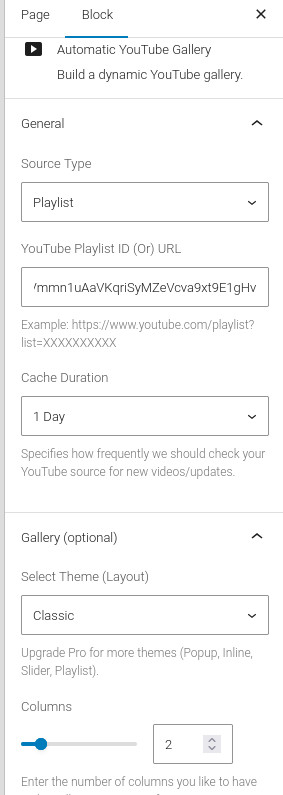
/Automatic YouTube Gallery
- Configure in the block options section.
- The hardest part is getting the YouTube channel’s ID
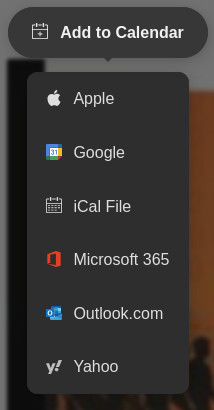
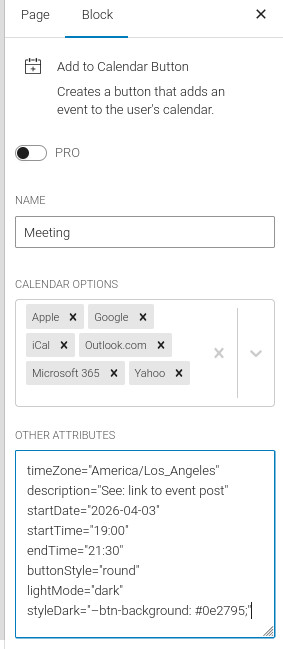
/Add to Calendar Button
- Configure in the block options section.
- You can find a “template” here.
- For help, use the link in the block options section: “Click here for documentation.“
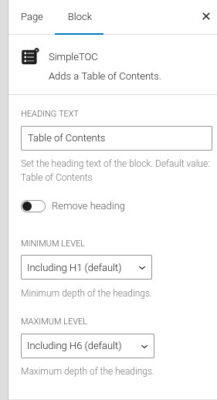
/SimpleTOC
- Add this after a Page or Post Title.
- Configure in the block options section
/Imagely
- First, create photo galleries in the admin area. Ask an admin user to create this.
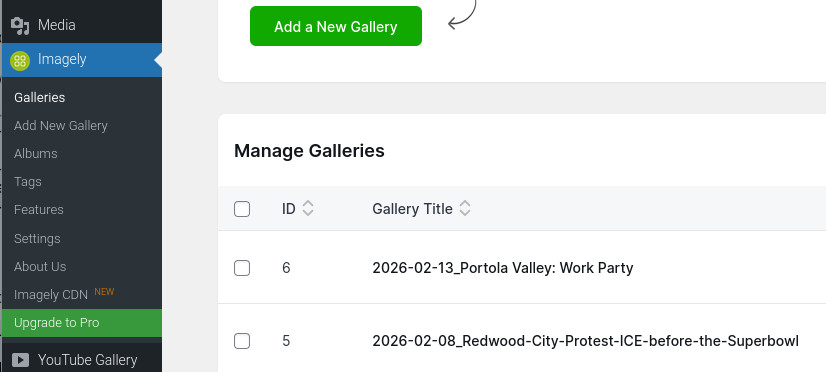
- This is more flexible than the core Gallery block.
- It also places photos in a separate area from the Media Library.
- Do not put gallery photos in the Media Library. Only book covers and featured images should be put in the Media Library.
Auto-expire posts
- Scroll to the bottom of the edit box area, and look for the Expiry Date field.
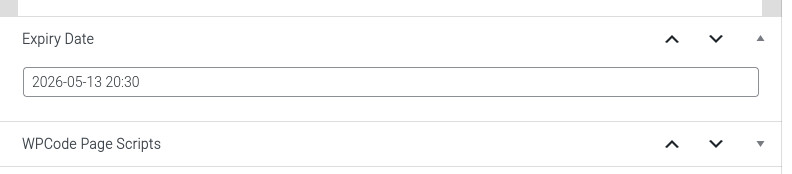
- Click in the field. You can now enter the expiration date/time.
- Posts with the “event” tag will be sorted by their “expire date,” not the usual “post date.”
Block visibility
- See “Visibility” in the block options section.
- Documentation is here: Guide to getting started with block visibility
- For example, “For Authors,” “For Editors,” and “For Admins” links in the left menu column are shown based on a logged-in “user’s role.”
WP Duplicate page
- In the admin list area, a “Duplicate” link is available after each post or page. That can be a quick way to start a new post.
- You can duplicate an existing post, or we can create some sample draft templates for the different post types. Then you can duplicate the type you want, and then replace the text with your content.
Publish date
- You should adjust a post’s publish date based on its content.
- For books, articles, and videos, set the date to the publish date.
- For organizations, set the date to the organization’s creation date. That could be years ago, but that is OK, because the organization will mostly be found with tags or categories.
- Events could have the publish date set to a future date. Maybe you have a series of events, and you don’t want the next one to show until a previous event has expired.
- Only use “today’s date” when you really don’t have a date for the item you are posting. Most posts will be found with their tag or category.