
Tip
You can list all the Categories and Tags with that menu option.
Tip
To see upcoming events, click the “All Events” menu option.
Tip
To see new posts, click on “Latest Posts” menu option.
Tip
To see what is new on the site, click on the menu option “Site Updates – What’s New“
Tip
Do you want to add or edit a new post? Use the “Contact Us” form to ask for a User ID.
Tip
Do you want to help improve this site? See the “Help Grow the Site” page under the “What Can You Do?” menu.
Tip
Do you want to advertise an event? Use the “Add An Event Form” under the “All Events” menu.
Tip
Event posts will be removed after the event, or photos will be added.
Tip
Events are sorted by event dates.
Tip
Do you have an important news item? Use the “Add Event Form” on the “Help Grow the Site” page, under the “What Can You Do?” menu.
Tip
To see the whole post, click on its Title.
Tip
The links in the greyed-out section, at the bottom of a post’s summary, are links to other articles related to the listed categories and tags. Click on one if you are interested in those related posts.
Tip
Most items are added as “posts” or “events.”
Tip
Lost? Click on “Site Help” in the menu.
Tip
If you are on a mobile device, look for the menu icon (≡ or ⋮)
Here are some quick tips for navigating this site.
Post Summaries
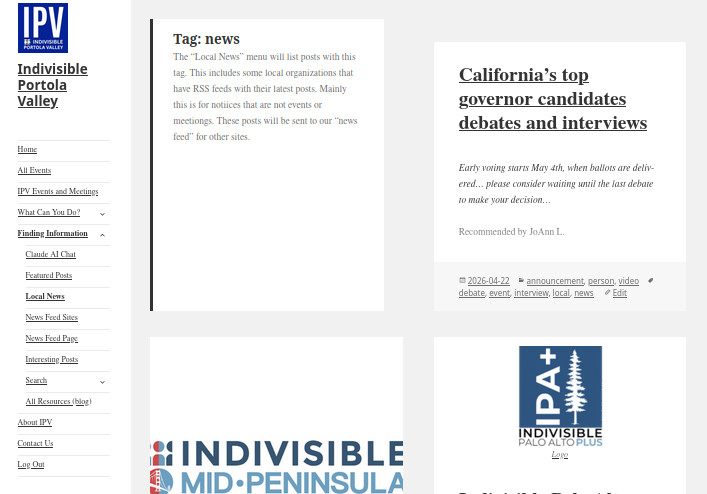
When you see a page with two columns, like the following image, this is a summary list of the posts that match your selection of a tag, category, or search text. To see more of a post, click on the post’s top image or on the post’s title.
The links in the greyed-out section, at the bottom of a post’s summary, are links to other articles related to the listed categories and tags. Click on those if you are interested in those related posts.
(Note: if you are on a mobile device, the post summaries will be listed in one column. Click on a heading or top image to see the full post. Also, look for the menu icon, ≡ or ⋮)
Post Pages
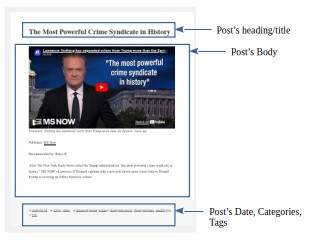
The following image shows the full page of a post. Books and articles often have an image related to the book or article. For video-only pages, as shown here, the video will appear after the post’s title. Book posts will often include the author’s name, publisher, a short blurb about the book, and a “buy” button. There could also be links to book reviews and video interviews. The date of a book or article is shown at the bottom of the post.
More Help
For details about what is on the site, click on the “Finding Information” menu link.
If you are still lost about how to use this site, you can use the Contact Us form to ask your questions.